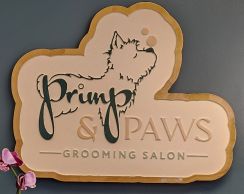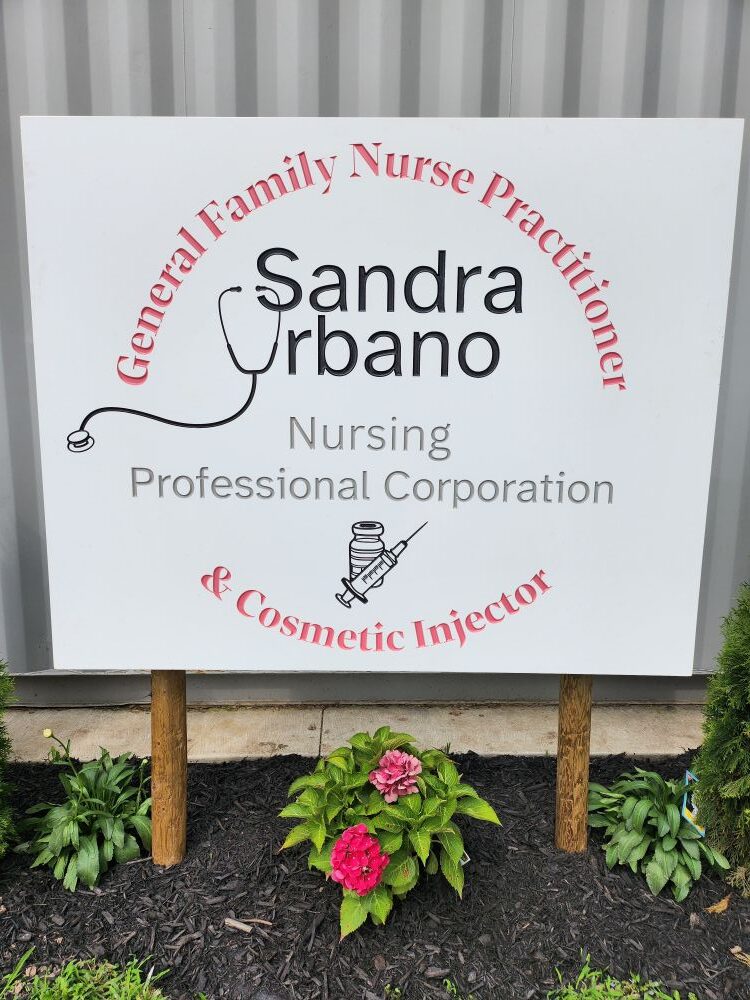

As your sign maker, I'm excited to help bring your logo or design to life on our laser and CNC machines! To ensure the highest quality sign with perfectly clean cuts and engravings, the file you provide is absolutely critical. It all comes down to using a clean vector file.
This guide will walk you through what a vector file is, why it's necessary, and the simple steps you can take to provide the perfect graphic.
What's the Big Deal with Vector Files?
Simply put, a vector file is your design's master blueprint.
- Vector Graphics: These images are built from mathematical equations that define points, lines, and curves. Think of it like a set of drawing instructions.
- The Key Benefit: Infinite Scalability. Because it's a mathematical formula, a vector graphic can be scaled infinitely larger or smaller without ever losing quality or becoming blurry (pixelated). Whether your logo is going on a tiny keychain or a massive outdoor sign, it will be perfectly crisp.
- The CNC/Laser Connection: Our machines (both laser and CNC) are programmed to follow these vector paths—they need these clean, mathematically defined lines to know exactly where to cut or engrave.
💡 The Contrast: The alternative is a raster file (like a JPEG, PNG, or GIF). These are made of a fixed grid of colored pixels. If you zoom in or enlarge them too much, the pixels become visible, and the edges look fuzzy—which is impossible for our machines to work with cleanly!
3 Steps to Prepare Your Design File
A "clean" vector file is one that is ready for production with minimal preparation work on our end. (If you don’t have the ability to prepare, we can help!) Follow these steps to make your sign maker's day!
1. Start with the Right Format
Please ensure your file is saved in one of these true vector formats. These are the most common and compatible:
- .AI (Adobe Illustrator Artwork)
- .EPS (Encapsulated PostScript)
- .SVG (Scalable Vector Graphics)
- .PDF (Portable Document Format—often contains vector data if saved correctly from a vector program)
- .DXF (Drawing Exchange Format—common for CAD/CNC work)
2. Convert All Text to Outlines (Curves)
NOTE: Having the original font is always preferred. If you can include the font, please make sure your signmaker has it. If not, identify it for them. They may have it, or can purchase it.
This is one of the most common issues we encounter! If your logo has text, you must convert the font into a vector shape.
- Why? If we don't have the exact font you used installed on our computer, the software will substitute it with a different font, messing up your design!
- The Fix: Select the text object in your design software and find the command "Create Outlines" (Illustrator) or "Convert to Curves" (CorelDRAW). This transforms the text from an editable font into a fixed vector shape.
3. Clean Up Your Paths and Strokes
This step ensures the machine only cuts or engraves exactly what you intend.
- Check for Overlapping Lines: Your design should not have multiple overlapping paths. For example, if you layered a circle on top of a square to create a specific shape, you need to use the software's tools (like the Pathfinder or Shape Builder) to merge the shapes into one single, clean path. The laser/CNC will cut every line it sees!
- Use Proper Strokes for Action: If your design requires different actions (cutting, vector etching, or raster engraving), please follow the specific color and line weight requirements we provided in your order details. A common standard is a thin stroke (e.g., 0.1pt) with no fill for a cut line.
By providing a clean vector file, you streamline the production process, eliminate potential quality issues, and ensure your finished sign is a perfect, crisp representation of your brand!
Don’t Have a Vector?
If you don’t have a vector file, we can still help. We have the ability to trace logos to create a vector from your artwork.
How will my sign look?
Creating a 3D sign, either layered from laser cutting, or carved on the CNC can have multiple looks for the same logo.
When working with the laser we can create a flat sign cutting each colour and object individually and fitting them together like a puzzle. 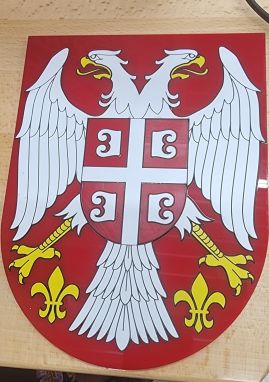
Alternatively you can stack elements to give more depth and dimension. The laser also allows use to engrave elements or work with materials that reveal a second colour beneath the first.
When carving on the CNC we can carve away material to leave your logo higher than the material, or carve into the material to have your image "recessed" Often there may even be a combination of the two.
We'll work with you to help understand what suits your brand the best.